
 Please let me know if there are any mistranslations!
As frontend developers, we often see design specs that ask for a 0.5px border. But even if you set border-width: 0.5px, DevTools usually shows it as 1px. Does the browser simply not draw 0.5px? Strangely, in some environments it does render exactly 0.5px.
The key difference is the Device Pixel Ratio — DPR.
What is DPR (Device Pixel Ratio)?
DPR indicates how many physical pixels are used to represent one logical pixel, and can be thought of like this:
It’s the scale of physical pixels used to display one logical pixel on the screen.
DPR = number of physical pixels ÷ number of logical pixelsPhysical pixel
Physical pixels are the actual hardware pixels that make up the display — the smallest unit that emits light.
For example, if an iPhone 16 Pro has a screen resolution of 1206 x 2622, it literally has 1206 physical pixels across and 2622 down.
Logical pixel (CSS pixel)
Logical pixels are the abstracted units we use in CSS. When we write width: 100px in code, that px refers to logical pixels.
Logical pixels exist to provide a consistent size regardless of a device’s physical resolution. Thanks to this, developers can target a variety of devices with the same CSS without worrying about physical resolution.
Continuing the earlier example, the logical pixel resolution on iPhone 16 Pro is 402 × 874. If you divide the physical pixels (1206 x 2622) by the logical pixels (402 × 874), you get exactly 3 — meaning the device has DPR 3.
Pixel mapping by DPR
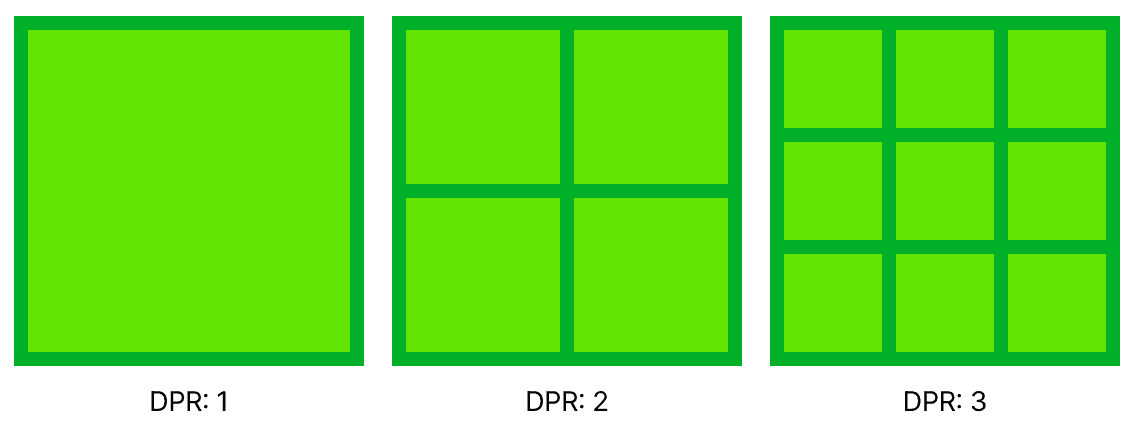
Now that we understand DPR, here’s how a logical pixel maps to physical pixels for each DPR:
- DPR 1 (typical monitors): CSS 1px = physical 1px
- 1 logical px is rendered with 1 physical pixel
- DPR 2 (MacBook Retina displays): CSS 1px = physical 2x2px (total 4)
- 1 logical px is rendered with 4 physical pixels
- DPR 3 (iPhone Pro, etc.): CSS 1px = physical 3x3px (total 9)
- 1 logical px is rendered with 9 physical pixels
So when does 0.5px get drawn?
DPR 1 (typical monitors)
On a typical monitor, one logical pixel is represented by exactly one physical pixel. But how do you draw 0.5px? There is no way to represent half of a physical pixel — pixels are the minimum indivisible unit.
Browsers detect this and either round or anti‑alias (blur) the line. That’s why you might see a 1px-thick or fuzzy line instead of a crisp 0.5px.
0.5px (logical) × DPR 1 = 0.5px (physical, impossible) → rounded to 1pxDPR 2 (MacBook Retina)
Things change on devices with DPR 2. A single logical pixel can be represented using a 2×2 grid of physical pixels.
0.5px (logical) × DPR 2 = 1px (physical, possible!)Multiply 0.5 logical pixels by DPR 2 and you get exactly 1 physical pixel. In other words, it can be represented by a whole single physical pixel. That’s why 0.5px renders correctly on devices with DPR 2 or higher.
Browser zoom and DPR
Interestingly, changing the browser’s zoom level also changes window.devicePixelRatio (behavior can vary by browser).
// On a DPR 1 device
// 100% zoom
console.log(window.devicePixelRatio); // 1
// 200% zoom
console.log(window.devicePixelRatio); // 2
// 50% zoom
console.log(window.devicePixelRatio); // 0.5
There has been prior discussion about Chromium browsers changing DPR when zooming:
Update window.devicePixelRatio on browser zoom (content upscaling)
How browser zoom works
Browser zoom changes the size of CSS pixels themselves. At 200% zoom, each CSS pixel occupies twice the physical area.
Importantly, the numeric CSS pixel values of elements do not change. An element defined as width: 128px remains 128 CSS pixels even at 200% zoom. What changes is the physical area each CSS pixel occupies.
- 100% zoom: CSS 1px = physical 1px (baseline)
- 200% zoom: CSS 1px = physical 2x2px (each CSS pixel becomes 4× larger)
- 50% zoom: CSS 1px = physical 0.5x0.5px (each CSS pixel becomes 1/4 size)
How does 0.5px react to zoom?
100% zoom (DPR 1): 0.5px × 1 = 0.5px (physical) → rounded to 1px ✗
200% zoom (DPR 2): 0.5px × 2 = 1px (physical) → renderable ✓
So at 200% zoom, the effective DPR becomes 2, making 0.5px possible.
Conversely, on a Retina display (DPR 2), zooming out to 50% drops the effective DPR to 1. Then 0.5 logical px becomes 0.5 physical px again — which can’t be represented — so you lose the crisp 0.5px rendering just like on a typical monitor.
DPR and image rendering
DPR matters not only for UI elements like borders, but also when rendering images.
High‑density displays and image quality
Suppose you display an image at 300x300px on a DPR 2 Retina display. The browser uses a physical area of 600x600px to represent those 300 CSS pixels.
What if the actual image file is only 300x300px? The browser must upscale it to fit the 600x600 physical area, resulting in a blurry image.
CSS 300px × DPR 2 = physical 600px
But the image file is 300px → upscaling required → blur
To avoid this, you should provide image assets sized appropriately for the DPR.
- DPR 1: a 300x300px image is sufficient
- DPR 2: provide a 600x600px image (2×)
- DPR 3: provide a 900x900px image (3×)
srcset and automatic browser selection
Users have devices with different DPRs. If you always serve the largest image, low‑density displays download unnecessarily large files. If you only serve small images, high‑density displays will look blurry.
HTML’s srcset solves this.
<img
  srcset="
    photo-320w.jpg,
    photo-480w.jpg 1.5x,
    photo-640w.jpg 2x
  "
  src="photo-640w.jpg"
  alt="description"
  style="width: 320px"
/>
In the code above:
- The image is displayed at 320px via CSS
srcsetdefines multiple resolutions
The browser checks the device’s DPR and automatically selects the most appropriate image:
- DPR 1 device: loads
photo-320w.jpg(1x can be omitted) - DPR 1.5 device: loads
photo-480w.jpg - DPR 2+ device: loads
photo-640w.jpg
On high‑density displays (DPR ≥ 2), a larger file is loaded to provide a sharper image.
How Next.js Image works
Next.js’s <Image> component automates this principle for you.
<Image
  src="/photo.jpg"
  width={300}
  height={300}
  alt="description"
/>
Under the hood, Next.js generates multiple sizes and builds the srcset automatically, so you don’t have to create variants or hand‑craft srcset entries yourself.
Wrap‑up
I started with a simple question: “Why won’t 0.5px render?” Understanding DPR not only explains that, but also why the same CSS renders differently across devices, why images can look blurry on high‑density displays, and why srcset exists in the first place.
References